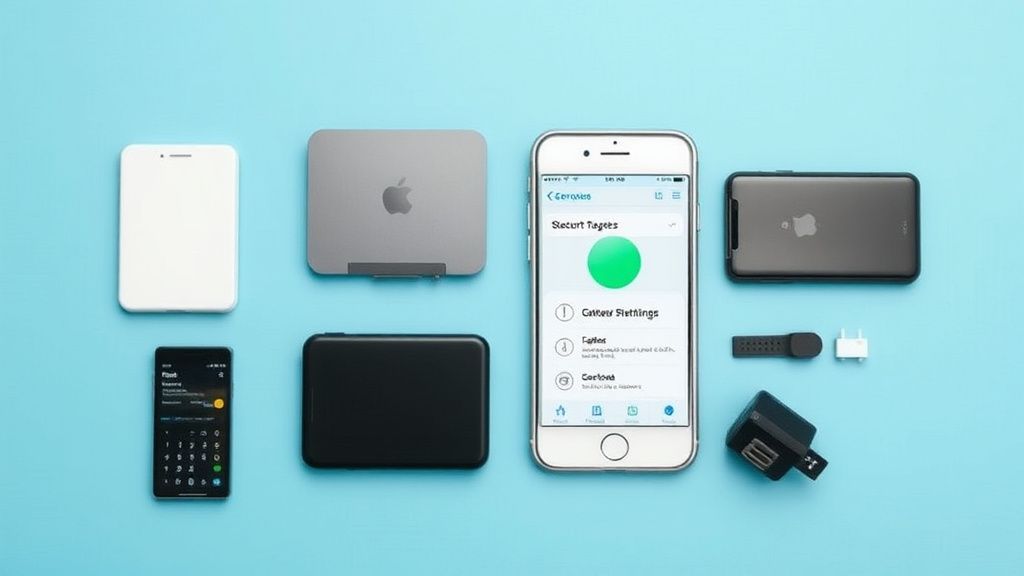
Troubleshooting iPhone Charging Issues: Why Your Phone Won’t Power Up
A dead iPhone can be frustrating, especially when you need it most. Charging issues can stem from software glitches, faulty cables, or even hardware problems. This guide walks you through practical troubleshooting steps, explains common causes, and offers accessory recommendations to keep your iPhone powered up.
Check the Basics First
Before diving into complex fixes, rule out simple issues:
- Ensure the Power Source Works – Plug another device into the outlet or USB port to confirm it’s supplying power.
- Inspect the Charging Cable – Look for frayed wires, bent connectors, or debris in the Lightning port.
- Try a Different Cable & Adapter – Borrow a friend’s or use a known-working set to isolate the issue.
- Restart Your iPhone – A soft reset can resolve temporary software bugs affecting charging.
Clean the Charging Port
Dirt, lint, and debris often accumulate in the Lightning port, preventing a solid connection.
How to Safely Clean It:
- Use a soft brush or toothpick – Gently remove visible debris. Avoid metal tools that could damage contacts.
- Compressed air – A quick burst can dislodge stubborn particles.
- Isopropyl alcohol (90%+) & cotton swab – Dampen (not soak) the swab to clean grime.
Note: If the port is corroded (green/white residue), professional repair may be needed.
Test Wireless Charging (If Supported)
If your iPhone supports Qi wireless charging (iPhone 8 and later), try placing it on a compatible charger.
- No response? The issue may be battery-related.
- Charges wirelessly but not wired? The Lightning port or cable is likely faulty.
Examine Software & Settings
Software issues can sometimes prevent charging:
1. Check for Overheating
iPhones pause charging if too hot. Move it to a cooler area and wait before retrying.
2. Update iOS
Outdated software can cause power management bugs. Go to Settings > General > Software Update.
3. Reset All Settings
Corrupted preferences may interfere with charging. Navigate to Settings > General > Transfer or Reset iPhone > Reset > Reset All Settings.
4. Battery Health Check
Degraded batteries struggle to hold a charge. Go to Settings > Battery > Battery Health. If “Maximum Capacity” is below 80%, consider a battery replacement.
Identify Hardware Problems
If software fixes don’t help, the issue may be hardware-related:
Faulty Charging Cable or Adapter
- Signs: Intermittent charging, slow charging, or “Accessory Not Supported” alerts.
- Solution: Use MFi-certified (Made for iPhone) cables and adapters for compatibility.
Damaged Lightning Port
- Signs: Loose connection, charging only at certain angles.
- Solution: Visit an Apple Store or authorized repair center.
Battery Failure
- Signs: Sudden shutdowns, rapid draining, swelling.
- Solution: Replace the battery via Apple or a trusted technician.
Recommended Accessories for Reliable Charging
Choosing the right accessories ensures consistent power delivery:
Cables
- Braided nylon cables resist fraying.
- MFi-certified guarantees Apple compatibility.
Wall Adapters
- 18W+ USB-C adapters enable fast charging (iPhone 8 and later).
- Multi-port adapters for charging multiple devices.
Wireless Chargers
- Qi-certified pads ensure compatibility.
- Magnetic MagSafe chargers (iPhone 12+) align perfectly for faster charging.
Power Banks
- 10,000mAh+ capacity for multiple charges.
- USB-C PD (Power Delivery) for fast recharging.
What to Look for When Buying Charging Accessories
To avoid compatibility or safety issues:
✔ MFi or Qi Certification – Ensures Apple-approved performance.
✔ Wattage Matching – iPhones support up to 27W fast charging (iPhone 14 Pro Max).
✔ Durable Build – Reinforced connectors and strain relief prevent wear.
✔ Overcharge Protection – Prevents battery damage from prolonged charging.
When to Seek Professional Help
If none of these steps work:
- Persistent “No Charging” alerts may indicate a logic board issue.
- Physical damage (water exposure, bent pins) requires expert repair.
Apple’s diagnostic tools (available at stores or via Support app) can pinpoint deeper issues.
Final Thoughts
Most charging problems are fixable with simple checks. Start with the basics—cables, ports, and power sources—before exploring software or hardware fixes. Investing in quality accessories minimizes future headaches. If all else fails, professional support ensures your iPhone gets back to full power safely.
By following this guide, you’ll keep your iPhone charged and ready when you need it most.