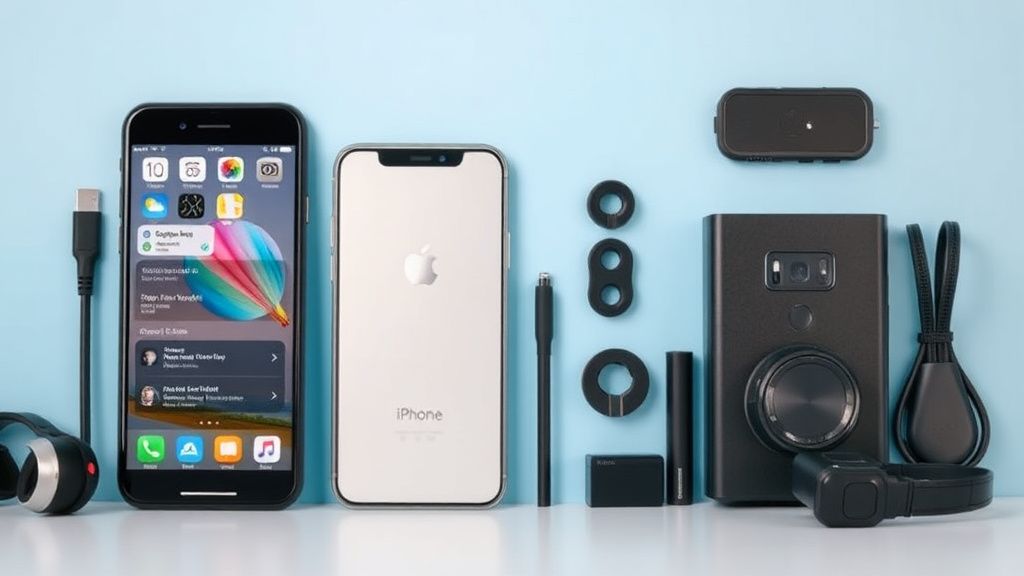
Why Transferring Data to a New iPhone Matters
When upgrading to a new iPhone, transferring your data ensures you don’t lose important information like contacts, photos, apps, and settings. Whether you’re moving from an older iPhone or switching from an Android device, Apple provides multiple methods to make the process seamless. This guide walks you through the most effective ways to transfer your data, along with tips and accessory recommendations to simplify the process.
Preparing Your Old Device
Before transferring data, take these steps to ensure a smooth transition:
- Back Up Your Data: Use iCloud or iTunes/Finder to create a backup of your old iPhone. For iCloud, go to Settings > [Your Name] > iCloud > iCloud Backup and tap Back Up Now. For iTunes/Finder, connect your iPhone to a computer, select your device, and click Back Up Now.
- Update Software: Ensure both your old and new iPhones are running the latest version of iOS. Go to Settings > General > Software Update to check.
- Charge Your Devices: Make sure both iPhones are charged to at least 50% or connected to power during the transfer process.
- Check Storage: Verify that your new iPhone has enough storage to accommodate your data. If not, consider offloading unused apps or deleting unnecessary files.
Methods to Transfer Data to a New iPhone
1. Quick Start (iPhone to iPhone)
Quick Start is the fastest and most convenient method for transferring data between iPhones.
Steps:
- Turn on your new iPhone and place it near your old iPhone. A Quick Start prompt will appear on the old device.
- Tap Continue and use your old iPhone to scan the animation on the new iPhone.
- Enter your passcode on the new iPhone and follow the on-screen instructions to set up Face ID or Touch ID.
- Choose Transfer from iPhone to move your data directly. Keep both devices close together until the process completes.
Pro Tip: Use a Lightning-to-USB cable to connect the two iPhones for faster data transfer.
2. iCloud Backup
If you prefer a wireless method, iCloud Backup is a reliable option.
Steps:
- On your old iPhone, ensure you’ve created an iCloud backup (as described earlier).
- Turn on your new iPhone and follow the setup prompts until you reach the Apps & Data screen.
- Select Restore from iCloud Backup, sign in with your Apple ID, and choose the most recent backup.
- Wait for the restore process to complete. Your iPhone will restart, and your data will be available.
Note: iCloud offers 5GB of free storage, but you may need to upgrade to a paid plan if your backup exceeds this limit.
3. iTunes/Finder Backup
For a local backup, use iTunes (on Windows or older macOS versions) or Finder (on macOS Catalina and later).
Steps:
- Connect your old iPhone to your computer and create a backup using iTunes/Finder.
- Turn on your new iPhone and follow the setup prompts until you reach the Apps & Data screen.
- Select Restore from Mac or PC, connect your new iPhone to the same computer, and choose the backup you created.
- Wait for the restore process to finish.
4. Move to iOS (Android to iPhone)
If you’re switching from an Android device, Apple’s Move to iOS app simplifies the process.
Steps:
- On your Android device, download the Move to iOS app from the Google Play Store.
- Turn on your new iPhone and follow the setup prompts until you reach the Apps & Data screen.
- Select Move Data from Android. On your Android device, open the Move to iOS app and follow the instructions.
- Enter the code displayed on your iPhone into your Android device.
- Select the data you want to transfer (contacts, messages, photos, etc.) and wait for the process to complete.
Pro Tip: Both devices need to be connected to the same Wi-Fi network for this method to work.
Essential Accessories for Data Transfer
- Lightning-to-USB Cable: A high-quality cable ensures fast and reliable data transfer between devices.
- USB-C to Lightning Cable: If your new iPhone uses USB-C (like the iPhone 15 series), this cable is essential for connecting to a computer or power adapter.
- External Storage: If you’re running low on iCloud storage, consider using an external storage device to back up your data before transferring.
- Wireless Charger: Keep your devices powered during the transfer process with a Qi-compatible wireless charger.
Troubleshooting Common Issues
- Transfer Taking Too Long: Ensure both devices are connected to a stable Wi-Fi network or use a wired connection for faster transfer speeds.
- Insufficient Storage: Delete unnecessary files or apps on your new iPhone to free up space.
- Failed Backup/Restore: Restart both devices and try the process again. If the issue persists, update your software or contact Apple Support.
- Move to iOS Not Working: Ensure both devices are connected to the same Wi-Fi network and that the Android device has sufficient battery life.
What to Look for When Buying Accessories
When purchasing accessories for data transfer, consider the following:
- Compatibility: Ensure the accessory is compatible with your iPhone model (e.g., Lightning vs. USB-C).
- Quality: Opt for cables and adapters from reputable manufacturers to avoid damage to your devices.
- Storage Capacity: If buying external storage, choose a device with enough capacity for your backup needs.
- Warranty: Look for accessories that come with a warranty for added peace of mind.
By following this guide, you can confidently transfer your data to a new iPhone and enjoy a seamless transition to your upgraded device.