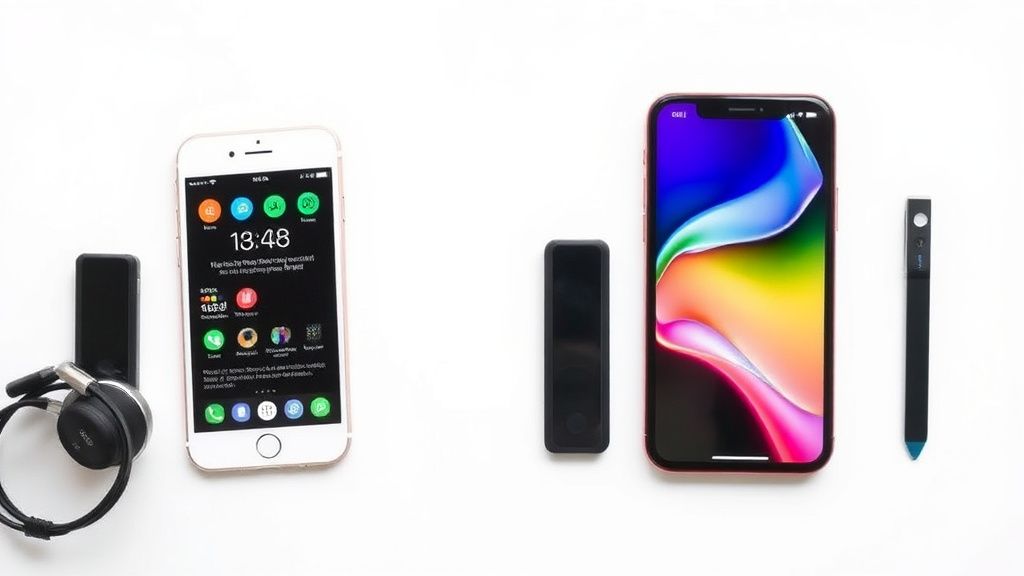
Setting Up Face ID and Touch ID on iPhone: A Security Deep Dive
Apple’s Face ID and Touch ID provide seamless yet secure authentication for unlocking your iPhone, authorizing payments, and accessing sensitive apps. While both technologies are designed for convenience, understanding how they work—and how to configure them properly—ensures maximum security.
This guide walks you through setup, troubleshooting, and best practices for Face ID and Touch ID, along with accessory considerations that may impact performance.
How Face ID and Touch ID Work
Face ID: Depth-Sensing Biometrics
Face ID uses the TrueDepth camera system to project and analyze over 30,000 invisible infrared dots, creating a precise 3D map of your face. The system adapts to changes like glasses, facial hair, or makeup, and requires attention (eyes open, looking at the screen) to unlock.
Touch ID: Capacitive Fingerprint Scanning
Touch ID, available on older iPhones and some iPad models, uses a capacitive sensor embedded in the Home button. It reads sub-epidermal skin layers for accuracy and improves over time as it learns more of your fingerprint.
Both systems store biometric data in the Secure Enclave—a dedicated chip isolated from the main processor—ensuring it’s never uploaded to iCloud or shared with apps.
Setting Up Face ID
- Open Settings > Face ID & Passcode (enter your passcode if prompted).
- Tap Set Up Face ID and position your face within the on-screen frame.
- Gently move your head in a circle until the scan completes, then repeat for a second scan.
- Enable Require Attention for Face ID (recommended for security).
- Toggle options like iPhone Unlock, Apple Pay, and Password Autofill as needed.
Pro Tip: For better accuracy, set up Face ID in your most common lighting conditions (e.g., indoors and outdoors).
Setting Up Touch ID
- Open Settings > Touch ID & Passcode (enter your passcode if prompted).
- Tap Add a Fingerprint and place your finger on the Home button.
- Lift and rest your finger slightly adjusted each time until the scan finishes.
- Repeat for the edges of your fingertip to improve recognition.
- Assign fingerprints names (e.g., “Left Thumb”) for easier management.
Pro Tip: Register multiple fingers (up to five) for flexibility, like when wearing gloves or holding your phone awkwardly.
Troubleshooting Common Issues
Face ID Fails Frequently
- Clean the sensors: Wipe the front camera and TrueDepth array with a microfiber cloth.
- Reset and re-scan: Delete the existing face model and set it up again.
- Check for obstructions: Screen protectors or cases that block the sensors may interfere.
Touch ID Not Recognizing Your Finger
- Re-register fingerprints: Over time, wear or minor cuts can alter your prints.
- Clean the Home button: Oil, dirt, or moisture can disrupt the sensor.
- Try a different angle: Press your finger flat rather than at an extreme angle.
General Fixes for Both
- Restart your iPhone.
- Update iOS to the latest version.
- Ensure Attention-Aware Features (Face ID) or Fingerprint Unlock (Touch ID) are enabled.
Security Best Practices
- Always Set a Strong Passcode: Biometrics can fail or be bypassed (e.g., via forced unlocking). A passcode is your fallback.
- Disable Lock Screen Access: Prevent Face ID/Touch ID from showing notifications or allowing actions like Wallet access when locked.
- Use Alternate Appearance (Face ID): Add a second look (e.g., with/without glasses) under Set Up an Alternate Appearance.
- Enable “Erase Data” (Optional): After 10 failed attempts, your iPhone wipes itself—useful for high-risk users.
Accessory Considerations
Screen Protectors
- For Face ID: Choose “TrueDepth-compatible” protectors that don’t obstruct the infrared camera.
- For Touch ID: Avoid thick protectors that reduce capacitive sensitivity.
Cases
- Face ID: Ensure the case doesn’t cover the notch area.
- Touch ID: Verify the Home button cutout allows full contact with your finger.
Gloves and Styluses
- Touch ID won’t work through most gloves unless they’re capacitive-tip compatible.
- Face ID may struggle with ski masks or heavy scarves; use a passcode instead.
What to Look for in Biometric-Friendly Accessories
When buying accessories that interact with Face ID or Touch ID:
- Precision cutouts: For cases, check reviews mentioning sensor compatibility.
- Material transparency: Screen protectors should avoid IR-blocking coatings.
- Thinness: Thicker materials (e.g., tempered glass) may reduce Touch ID responsiveness.
By optimizing both software settings and hardware choices, you’ll balance security and convenience effortlessly.