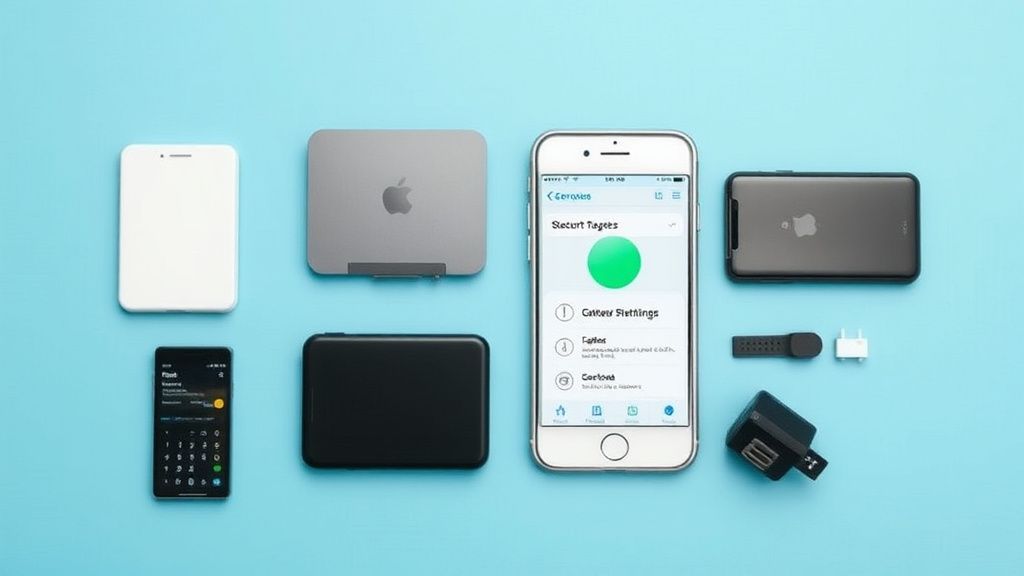
Understanding iPhone Battery Health
Your iPhone’s battery health determines how long it lasts on a single charge and how well it performs over time. Apple measures battery health as a percentage of its original capacity—once it drops significantly, you may notice shorter battery life and potential performance throttling.
Key factors affecting battery health:
- Charge cycles: A full cycle occurs when you use 100% of your battery’s capacity (not necessarily in one charge).
- Temperature exposure: Extreme heat or cold degrades lithium-ion batteries faster.
- Charging habits: Frequent full discharges or keeping the battery at 100% for long periods can stress it.
Optimize Charging Habits
Use Optimized Battery Charging
iPhones (iOS 13 and later) include Optimized Battery Charging, which learns your routine and delays charging past 80% until you need it. To enable:
- Go to Settings > Battery > Battery Health & Charging.
- Toggle on Optimized Battery Charging.
Avoid Extreme Charging Levels
- Don’t drain to 0% regularly: Lithium-ion batteries prefer partial discharges. Try to keep it between 20% and 80%.
- Unplug at 100%: Leaving your iPhone plugged in overnight occasionally is fine, but avoid constant full charges.
Use the Right Charger
- Apple-certified chargers: Stick to official or MFi-certified (Made for iPhone) chargers. Cheap knockoffs may lack proper voltage regulation.
- Fast charging wisely: iPhones support fast charging (18W+ adapters), but frequent use generates more heat. Use a standard 5W or 12W adapter for overnight charging.
Manage Heat Exposure
Heat is a battery’s worst enemy. Avoid:
- Leaving your iPhone in direct sunlight (e.g., on a car dashboard).
- Using heavy apps while charging (e.g., gaming or video editing).
- Thick cases during charging: Some cases trap heat—remove them if your phone feels warm.
Adjust Settings for Efficiency
Lower Screen Brightness
The display is a major battery drain. Reduce brightness manually or enable Auto-Brightness:
- Go to Settings > Accessibility > Display & Text Size.
- Toggle on Auto-Brightness.
Enable Low Power Mode
Low Power Mode (Settings > Battery) reduces background activity and performance to extend battery life when under 20%. Use it proactively if you need extra runtime.
Limit Background Activity
- Background App Refresh: Disable for non-essential apps (Settings > General > Background App Refresh).
- Location Services: Set apps to “While Using” instead of “Always” (Settings > Privacy & Security > Location Services).
Update iOS Regularly
Apple often releases battery optimization improvements in iOS updates. Always install the latest version:
- Go to Settings > General > Software Update.
- Download and install available updates.
Battery Replacement: When to Consider It
If your battery health falls below 80%, consider a replacement:
- Apple’s official service: Costs around $69–$99 (varies by model).
- Authorized providers: Best for warranty preservation.
- Third-party repairs: Cheaper but may lack genuine Apple batteries.
What to Look for in Battery Accessories
When choosing chargers or battery packs:
- MFi certification: Ensures compatibility and safety.
- Portable power banks: Look for 5,000mAh–10,000mAh capacities with USB-C or Lightning input.
- Wireless chargers: Qi-certified pads (7.5W max for iPhones) are convenient but slower than wired.
Final Tips for Long-Term Battery Care
- Store at 50% charge: If storing your iPhone long-term, keep it half-charged in a cool place.
- Monitor battery health: Check Settings > Battery > Battery Health monthly.
- Avoid wireless charging in hot environments: Heat buildup accelerates degradation.
By following these practices, you can extend your iPhone’s battery lifespan and maintain peak performance for years.