Mastering Google Photos: Tips & Tricks for iPhone and Android Users
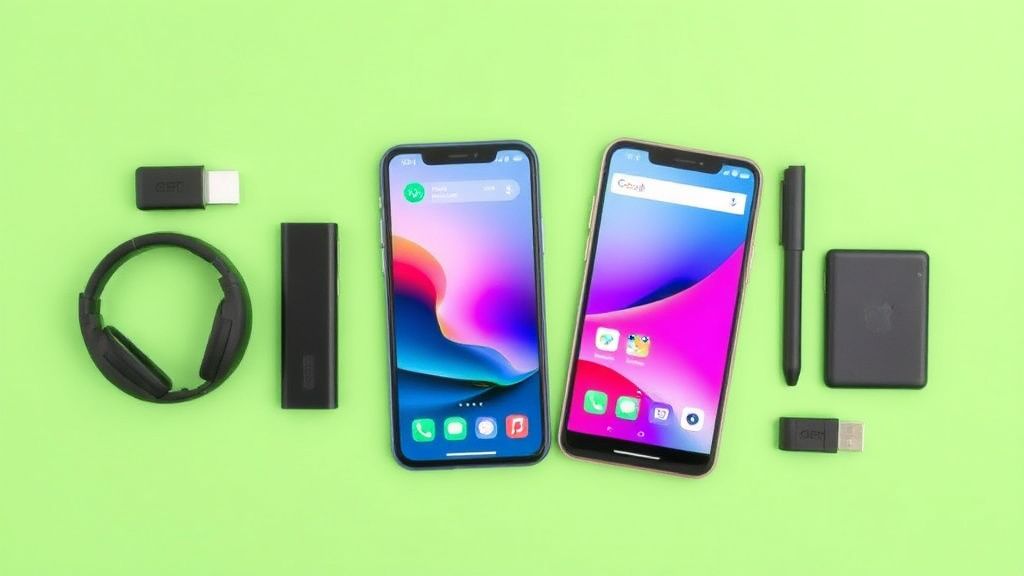
Google Photos is one of the most powerful cloud-based photo management tools available, offering seamless backup, organization, and editing features for both iPhone and Android users. Whether you’re looking to free up space, create shareable albums, or enhance your photos, mastering Google Photos can transform how you manage your memories. Here’s a detailed guide to getting the most out of the app.
Backing Up and Syncing Your Photos
Enable Automatic Backup
Google Photos automatically backs up your photos and videos when enabled. To set it up:
- Android: Open Google Photos → Tap your profile picture → Photos settings → Back up & sync → Toggle on.
- iPhone: Open Google Photos → Tap your profile picture → Photos settings → Back up & sync → Toggle on.
Choose between High quality (free unlimited storage with slight compression) or Original quality (counts against your Google Drive storage).
Free Up Phone Storage
Once your photos are backed up, you can safely delete them from your device:
- Open Google Photos → Tap your profile picture → Account storage.
- Select Free up space to remove backed-up photos from your phone.
Tip: Before deleting, ensure all photos are fully backed up by checking the cloud icon.
Organizing Your Photos Like a Pro
Use Albums and Shared Libraries
- Create Albums: Tap Library → Albums → New album to group photos by event, trip, or theme.
- Shared Albums: Invite others to contribute by tapping Share on an album. Great for collaborative memories.
Facial and Object Recognition
Google Photos automatically categorizes photos by people, pets, and objects. To improve recognition:
- Label faces manually by tapping Search → People & pets → Add a name.
- Search for objects (e.g., “mountains,” “dogs”) to quickly find specific photos.
Archive and Lock Folder
- Archive: Hide sensitive or clutter photos without deleting them. Tap and hold a photo → Archive.
- Locked Folder (Android only): Store private photos behind authentication (Settings → Locked Folder).
Editing and Enhancing Photos
Basic Adjustments
Google Photos includes powerful editing tools:
- Light: Adjust brightness, contrast, and shadows.
- Color: Tweak saturation and warmth.
- Pop: Adds vibrancy with one tap.
Advanced Tools
- Selective Blur: Use Portrait Blur to add depth to non-portrait shots.
- Dynamic Suggestions: The app suggests edits like auto-enhance or color pop.
Third-Party Editor Integration
For more control, tap Edit → More to open photos in Snapseed or Adobe Lightroom.
Sharing and Collaborating
Send Photos Quickly
- Link sharing: Tap Share → Create link to generate a shareable URL.
- Partner Sharing: Automatically share photos with a trusted contact (Settings → Partner sharing).
Create Movies and Collages
- Movies: Google Photos can auto-generate movies from your trips or events. Tap Library → Utilities → Movie.
- Collages: Combine multiple photos into a grid or stylized layout under Utilities → Collage.
Managing Storage Efficiently
Review Large Files and Blurry Photos
- Tap your profile picture → Account storage → Manage storage to delete large videos or blurry duplicates.
Set Backup Preferences
- Exclude specific folders (e.g., screenshots) from backup:
- Android: Settings → Back up & sync → Back up device folders.
- iPhone: Settings → Back up & sync → Manage device folders.
What to Look for in Accessories
To complement your Google Photos experience, consider these accessories:
- Portable SSD (e.g., Samsung T7): For local backups before uploading to Google Photos.
- Fast Charging Power Bank (e.g., Anker PowerCore): Keeps your phone alive during long photo sessions.
- Google Nest Hub: Displays your Google Photos library as a digital photo frame.
Final Thoughts
Google Photos simplifies photo management across iPhone and Android, offering smart organization, powerful editing, and seamless sharing. By leveraging these tips, you can optimize storage, enhance memories, and share moments effortlessly. Whether you’re a casual shooter or a photography enthusiast, mastering Google Photos ensures your memories are always safe and accessible.