Why iPhone Privacy Settings Matter
Your iPhone is a treasure trove of personal data, from messages and photos to banking information and location history. With cyber threats on the rise, protecting your privacy is more important than ever. Apple provides robust privacy features, but many users don’t fully utilize them. This guide will walk you through essential iPhone privacy settings to safeguard your data effectively.
1. Limit App Tracking
Apps often track your activity across other apps and websites to serve targeted ads. To prevent this:
- Go to Settings > Privacy & Security > Tracking.
- Toggle off Allow Apps to Request to Track. This blocks apps from accessing your device’s advertising identifier.
For better control, review individual app permissions in the same menu. Disable tracking for apps that don’t need it.
2. Manage App Permissions
Apps request access to your camera, microphone, location, and more. To review and adjust permissions:
- Navigate to Settings > Privacy & Security.
- Select categories like Location Services, Camera, or Microphone.
- Review apps listed and adjust permissions to While Using the App or Never.
For example, a weather app may need your location, but a photo-editing app likely doesn’t.
3. Enable Two-Factor Authentication (2FA)
Two-factor authentication adds an extra layer of security to your Apple ID. Here’s how to enable it:
- Go to Settings > [Your Name] > Password & Security.
- Tap Turn On Two-Factor Authentication.
With 2FA, you’ll need a verification code sent to your trusted device whenever you log in on a new device.
4. Use Sign in with Apple
When creating accounts for apps or websites, use Sign in with Apple instead of email or social media. This feature:
- Generates a unique email address for each app.
- Hides your real email address.
- Allows you to stop sharing your email if you delete the app.
To use it, tap Sign in with Apple when prompted during account creation.
5. Disable Siri on the Lock Screen
Siri can be accessed even when your iPhone is locked, potentially exposing sensitive information. To disable this:
- Go to Settings > Face ID & Passcode (or Touch ID & Passcode).
- Scroll down and turn off Siri under Allow Access When Locked.
This ensures Siri can only be used after unlocking your device.
6. Review Safari Privacy Settings
Safari offers several features to enhance your browsing privacy:
- Prevent Cross-Site Tracking: Go to Settings > Safari and enable Prevent Cross-Site Tracking.
- Hide IP Address: In the same menu, enable Hide IP Address.
- Use Private Browsing: Open Safari, tap the tabs icon, and select Private to browse without saving history.
7. Secure Your Messages
iMessage is encrypted by default, but you can take additional steps to protect your conversations:
- Enable Send Read Receipts only for trusted contacts by going to Settings > Messages.
- Use Screen Time to limit who can message or call you. Go to Settings > Screen Time > Communication Limits.
8. Control Your Location Sharing
Your iPhone tracks your location for various services. To manage this:
- Go to Settings > Privacy & Security > Location Services.
- Disable location access for apps that don’t need it.
- Turn off Significant Locations under System Services to prevent your iPhone from storing frequently visited places.
9. Use a VPN for Added Security
A Virtual Private Network (VPN) encrypts your internet traffic, making it harder for hackers to intercept your data. Look for reputable VPN apps like NordVPN or ExpressVPN in the App Store. Once installed, enable the VPN in Settings under the VPN section.
10. Regularly Update Your iPhone
Apple releases updates to fix security vulnerabilities. To ensure your iPhone is protected:
- Go to Settings > General > Software Update.
- Download and install any available updates.
Set your iPhone to update automatically by enabling Automatic Updates in the same menu.
What to Look for in iPhone Privacy Accessories
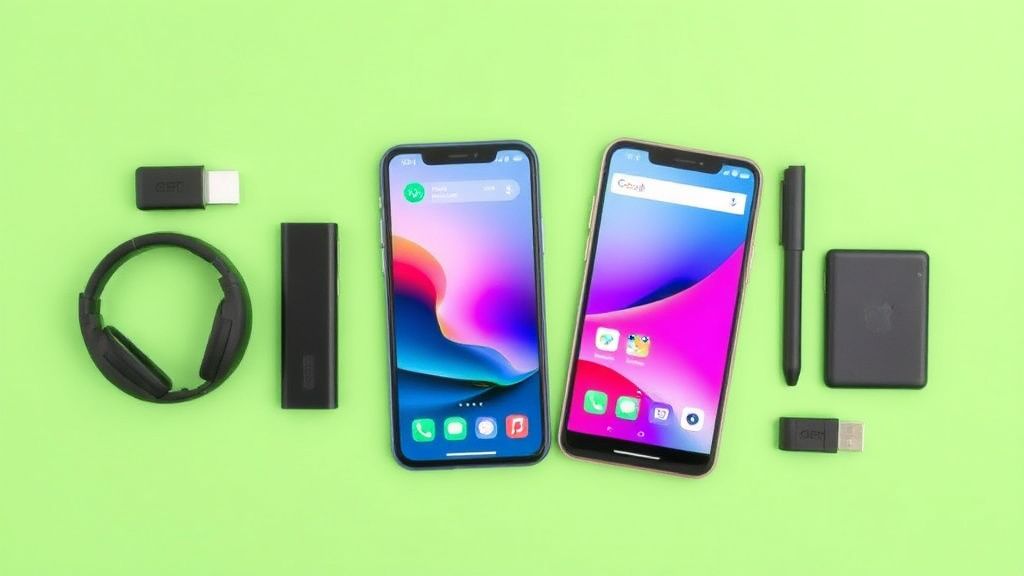
While software settings are crucial, hardware accessories can also enhance your privacy:
- Privacy Screen Protectors: These limit the viewing angle, preventing others from seeing your screen.
- Camera Covers: Physical covers for your front and rear cameras block unauthorized access.
- Signal-Blocking Cases: These cases prevent RFID scanners from accessing your credit card or passport information.
When choosing accessories, opt for trusted brands like Belkin or Spigen for reliability and compatibility.
Final Thoughts
Your iPhone’s privacy settings offer powerful tools to protect your data. By following this guide, you can minimize tracking, secure your accounts, and maintain control over your personal information. Regularly review your settings and stay informed about new privacy features Apple introduces. With a proactive approach, you can enjoy your iPhone with peace of mind.