Best iPhone Privacy Settings: Protect Your Data Now
Your iPhone holds a wealth of personal information, from messages and photos to financial details and location data. Protecting this data is crucial in an era of increasing digital threats. Fortunately, Apple provides robust privacy settings to help you stay secure. Here’s a practical guide to optimizing your iPhone’s privacy settings and safeguarding your information.
Enable Face ID or Touch ID
Biometric authentication is one of the most secure ways to lock your iPhone. Face ID (on newer models) and Touch ID (on older models) ensure that only you can unlock your device. To enable these features:
- Go to Settings > Face ID & Passcode (or Touch ID & Passcode).
- Follow the prompts to set up Face ID or Touch ID.
- Ensure iPhone Unlock is enabled.
Using biometrics adds an extra layer of security, making it harder for unauthorized users to access your phone.
Use a Strong Passcode
If biometrics fail, your passcode is the backup. A weak passcode can compromise your security. Follow these steps to create a strong passcode:
- Go to Settings > Face ID & Passcode (or Touch ID & Passcode).
- Tap Change Passcode.
- Select Custom Alphanumeric Code for maximum security.
Avoid common patterns like “1234” or “0000.” A strong passcode is essential for protecting your data.
Limit App Tracking
Apps often track your activity across other apps and websites. iOS includes a feature to limit this tracking:
- Go to Settings > Privacy & Security > Tracking.
- Toggle off Allow Apps to Request to Track.
This prevents apps from accessing your data for advertising purposes.
Review App Permissions
Apps often request access to features like your camera, microphone, location, and contacts. Regularly review and adjust these permissions:
- Go to Settings > Privacy & Security.
- Select categories like Location Services, Camera, or Microphone.
- Review the apps listed and adjust permissions as needed.
For example, set location access to “While Using the App” instead of “Always” to limit unnecessary tracking.
Enable Two-Factor Authentication
Two-factor authentication (2FA) adds an extra layer of security to your Apple ID. With 2FA enabled, logging into your account requires both your password and a verification code sent to a trusted device. To enable 2FA:
- Go to Settings > [Your Name] > Password & Security.
- Tap Turn On Two-Factor Authentication.
This ensures that even if someone steals your password, they can’t access your account without the verification code.
Use Private Browsing and Hide IP Address
Safari offers privacy-focused browsing options:
- Go to Settings > Safari.
- Enable Hide IP Address and Prevent Cross-Site Tracking.
Additionally, use Private Browsing mode when searching sensitive topics. This prevents Safari from saving your browsing history and cookies.
Disable Siri on Lock Screen
Siri can be accessed from the lock screen, potentially exposing sensitive information. To disable this:
- Go to Settings > Face ID & Passcode (or Touch ID & Passcode).
- Scroll down and turn off Siri under Allow Access When Locked.
This ensures Siri can’t be used without unlocking your phone.
Manage Mail Privacy Protection
Email tracking pixels can reveal when you open emails. iOS includes a feature to block these:
- Go to Settings > Mail > Privacy Protection.
- Enable Protect Mail Activity.
This hides your IP address and prevents senders from knowing when you’ve opened their emails.
Disable Personalized Ads
Apple uses your data to show personalized ads, but you can opt out:
- Go to Settings > Privacy & Security > Apple Advertising.
- Toggle off Personalized Ads.
This limits how your data is used for advertising purposes.
Regularly Update iOS
Apple releases iOS updates to fix security vulnerabilities and improve privacy features. Ensure your iPhone is always up to date:
- Go to Settings > General > Software Update.
- Download and install any available updates.
Running the latest iOS version ensures you have the most recent security patches.
Encrypt Your Backups
Backing up your iPhone is essential, but unencrypted backups can be accessed by anyone. To encrypt your backups:
- Connect your iPhone to a computer and open Finder (Mac) or iTunes (Windows).
- Select your device and check Encrypt Local Backup.
- Set a strong password.
Encrypted backups protect your data from unauthorized access.
Use a VPN for Added Security
A Virtual Private Network (VPN) encrypts your internet traffic, making it harder for hackers to intercept your data. Many VPN apps are available on the App Store. Look for one with a no-logs policy and strong encryption.
What to Look for in Privacy Accessories
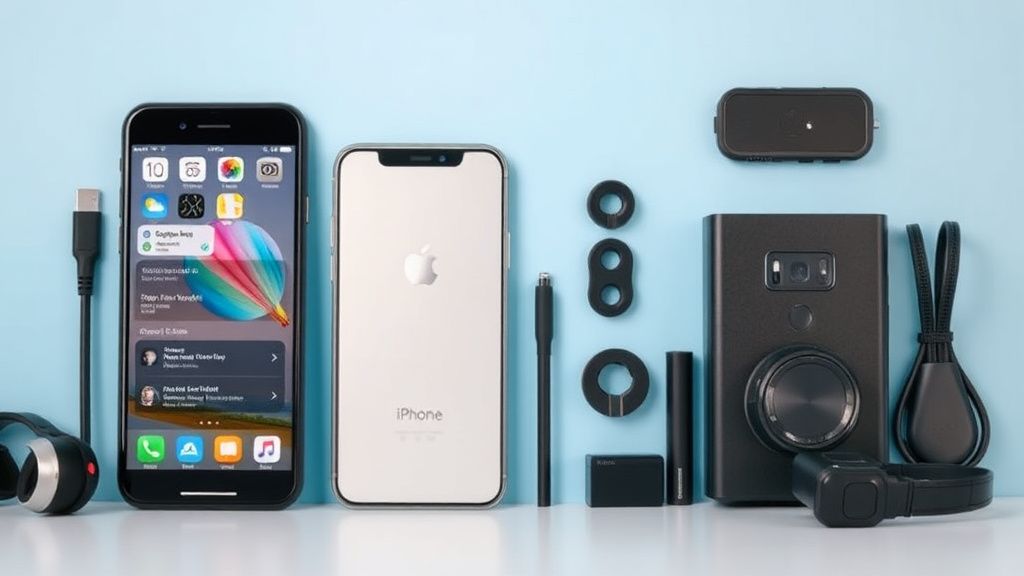
While software settings are crucial, hardware accessories can also enhance your privacy. Here’s what to consider:
- Privacy Screen Protectors: These limit the viewing angle of your screen, preventing others from seeing your content in public.
- Signal-Blocking Cases: These block RFID and NFC signals, protecting your phone from unauthorized scans.
- Camera Covers: Small sliders that block your front-facing camera when not in use, preventing unauthorized access.
When choosing accessories, prioritize compatibility with your iPhone model and ease of use.
Final Thoughts
Your iPhone is a gateway to your personal and professional life, so protecting it is non-negotiable. By implementing these privacy settings and using the right accessories, you can significantly reduce the risk of data breaches and unauthorized access. Regularly review your settings and stay informed about new privacy features to keep your iPhone secure in an ever-evolving digital landscape.