What Is Android Smart Lock?
Android Smart Lock is a feature designed to balance convenience and security by reducing how often you need to unlock your device. Instead of entering a PIN, pattern, or fingerprint every time, Smart Lock allows your phone to stay unlocked under certain trusted conditions—like when you’re at home, connected to a trusted device, or in motion.
This feature is particularly useful for users who frequently check their phones but don’t want to compromise security. It’s built into Android 5.0 (Lollipop) and later versions, though availability may vary slightly depending on your device manufacturer.
How Android Smart Lock Works
Smart Lock operates by using contextual cues to determine when your device should remain unlocked. Here’s how it functions:
-
Trusted Places – Your phone stays unlocked when you’re in a predefined location, such as your home or office. This uses Google’s location services, so accuracy depends on Wi-Fi/GPS signals.
-
Trusted Devices – Your device remains unlocked when connected to a specific Bluetooth or NFC device, like a smartwatch, car stereo, or wireless earbuds. Disconnecting re-locks the phone.
-
On-Body Detection – If enabled, your phone stays unlocked while it detects movement (like being carried in your pocket). Locking occurs when the phone is set down or stationary for a while.
-
Trusted Face & Voice – Some devices support face unlock or voice match (e.g., “Ok Google”) to keep the phone unlocked when recognized. Note: These methods are less secure than fingerprints or PINs.
Setting Up Android Smart Lock
To enable Smart Lock:
- Open Settings > Security & Privacy (or Biometrics and Security on some devices).
- Tap Smart Lock (may require your PIN/pattern/fingerprint to proceed).
- Choose an option:
- Trusted Places – Add your home or another frequent location.
- Trusted Devices – Pair a Bluetooth device (e.g., headphones, smartwatch).
- On-Body Detection – Toggle on if supported.
- Trusted Face/Voice – Follow on-screen setup if available.
Note: Some options may not appear depending on your Android version or device.
Practical Uses of Smart Lock
- At Home – Set your home as a Trusted Place to avoid constant unlocking while lounging.
- In the Car – Pair your phone with your car’s Bluetooth to keep it unlocked during drives.
- With Wearables – Link a smartwatch or fitness tracker to prevent locking while wearing it.
- On the Go – Use On-Body Detection for quick access during walks or commutes (though be cautious in crowded areas).
Security Considerations
While Smart Lock is convenient, it’s not foolproof:
- Trusted Places can be unreliable if GPS/Wi-Fi signals are weak.
- Trusted Devices may pose risks if your paired device is lost or stolen.
- On-Body Detection could fail to relock if the phone is taken from you while moving.
- Face/Voice Unlock is less secure than biometrics or passcodes.
For sensitive apps (banking, messaging), consider keeping them secured with additional authentication, even when Smart Lock is active.
Troubleshooting Common Issues
- Smart Lock Not Appearing? Check if your device supports it (some manufacturers disable it). Also, ensure you’re using a secure screen lock (PIN/pattern/fingerprint).
- Trusted Places Not Working? Re-add the location or toggle GPS/Wi-Fi. Google’s geofencing isn’t always precise.
- Bluetooth Pairing Problems? Re-pair the trusted device or restart both devices.
- Battery Drain? On-Body Detection and Trusted Places may use extra power; disable if battery life is critical.
What to Look for in Accessories for Smart Lock
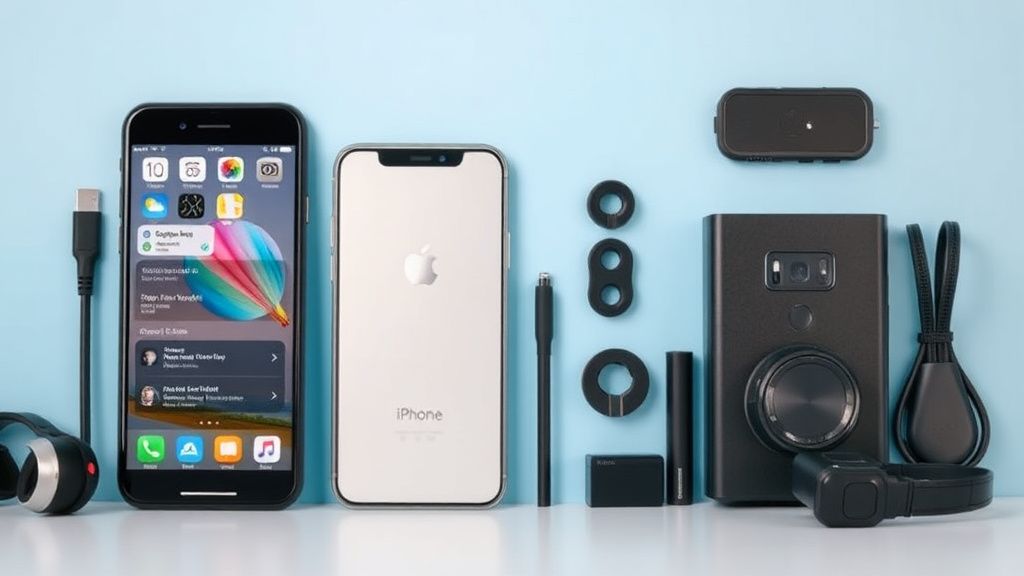
If you plan to use Trusted Devices, consider these factors when choosing Bluetooth or NFC accessories:
- Reliable Connectivity – Look for Bluetooth 5.0+ devices for stable pairing.
- Battery Life – Smartwatches or earbuds with long battery life ensure uninterrupted unlocking.
- NFC Compatibility – Some accessories (like tags or cards) use NFC for tap-to-unlock (less common but useful for desks/cars).
- Wearable Comfort – If using a smartwatch, ensure it’s comfortable for all-day wear.
Popular accessory types include fitness trackers, wireless earbuds, car infotainment systems, and NFC tags (for quick desk/car unlocking).
Final Tips for Using Smart Lock Wisely
- Use Trusted Devices over Trusted Places for better reliability.
- Combine Smart Lock with strong biometrics (fingerprint/face unlock) for added security.
- Periodically review and remove unused trusted devices/locations.
- Disable Smart Lock in high-risk scenarios (travel, crowded areas).
By tailoring Smart Lock to your habits, you can enjoy seamless access without sacrificing security. Experiment with different modes to find the best balance for your daily routine.