Android Notification Management: Tame Your Alerts for Focus
Notifications are essential for staying updated, but they can quickly become overwhelming. Android offers powerful tools to manage alerts, ensuring you stay productive without unnecessary distractions. Here’s how to take control of your notifications and optimize your device for focus.
Understanding Android Notification Channels
Android organizes notifications into channels, allowing granular control over how and when apps alert you. Each channel represents a type of notification from an app (e.g., messages, promotions, or system updates).
How to Customize Notification Channels:
- Open Settings > Apps & notifications > Notifications.
- Tap App notifications to see a list of installed apps.
- Select an app to view its channels (e.g., “Priority,” “Social,” “Promotions”).
- Toggle notifications on/off or adjust importance (Urgent, High, Medium, Low).
Pro Tip: Long-press a notification to directly access its channel settings.
Prioritizing Notifications with Do Not Disturb (DND)
DND silences non-critical alerts while allowing exceptions for important contacts or apps.
Setting Up Do Not Disturb:
- Open Settings > Sound & vibration > Do Not Disturb.
- Enable Turn on now or schedule it for specific times (e.g., work hours).
- Customize exceptions under Allowed notifications:
- Calls: Allow from starred contacts.
- Messages: Permit priority conversations.
- Apps: Whitelist critical apps (e.g., alarms, messaging).
Bonus: Use Bedtime Mode (in DND settings) to dim the screen and hide notifications overnight.
Managing App-Specific Notifications
Some apps bombard users with excessive alerts. Here’s how to rein them in:
For Social Media (e.g., Facebook, Instagram):
- Disable “Trending” or “Suggested post” notifications in the app’s settings.
- Set these channels to Low priority to minimize interruptions.
For Messaging Apps (e.g., WhatsApp, Telegram):
- Enable Priority for direct messages but mute group chats.
- Use in-app mute for temporary silence without disabling alerts entirely.
For Email (e.g., Gmail, Outlook):
- Turn off promotions/social tab notifications.
- Enable batch notifications to receive updates in intervals.
Using Notification History
Missed an alert? Android logs dismissed notifications for 24 hours by default.
How to Check Notification History:
- Go to Settings > Apps & notifications > Notifications.
- Tap Notification history and toggle it on.
Note: Some manufacturers (e.g., Samsung) may store history longer or require additional steps.
Smart Accessories for Better Notification Management
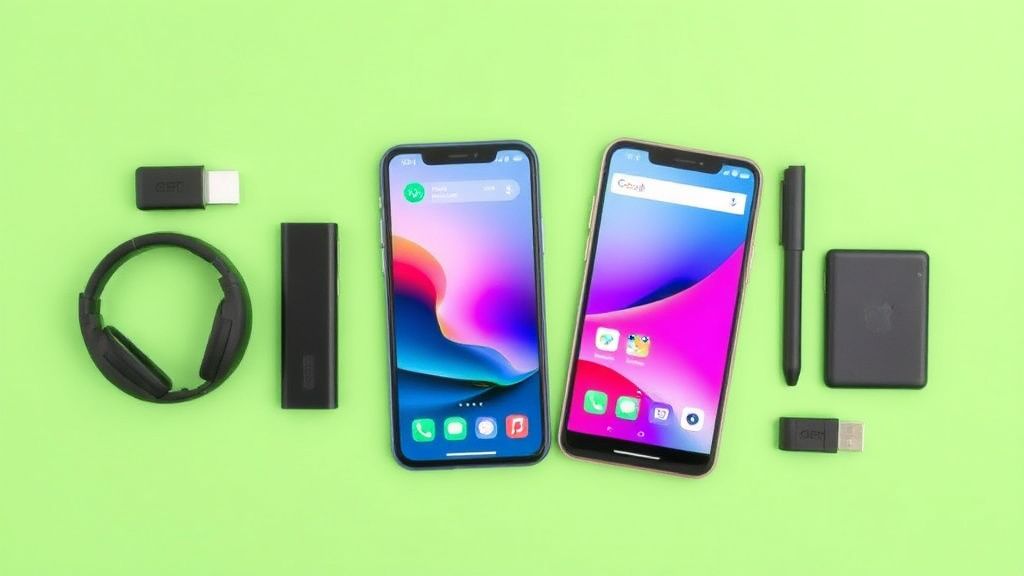
Pairing your Android with the right accessories can streamline alerts:
Smartwatches (e.g., Wear OS, Galaxy Watch):
- Filter notifications directly from your wrist.
- Customize vibrations for priority apps.
Wireless Earbuds (e.g., Pixel Buds, Galaxy Buds):
- Use audio alerts for calls/messages without checking your phone.
- Enable voice assistants to read notifications aloud.
LED Notifiers (e.g., Xiaomi Mi Band, third-party LED cases):
- Visual cues for missed alerts (color-coded for different apps).
What to Look for in Notification Management Tools
When optimizing alerts, consider these features:
- Granular Controls: Per-app and per-channel settings.
- Scheduling: Automate DND during work/sleep hours.
- Priority Exceptions: Never miss critical alerts.
- Cross-Device Sync: Smartwatches/earbuds that mirror notification settings.
Final Tips for a Distraction-Free Experience
- Audit Notifications Monthly: Review and disable unused app alerts.
- Use Focus Mode (Digital Wellbeing): Temporarily block distracting apps.
- Silence Non-Essentials: Set unimportant apps to “Silent” or “Low priority.”
By mastering these tools, you can transform your Android into a productivity powerhouse—keeping the noise out and letting only what matters in.