
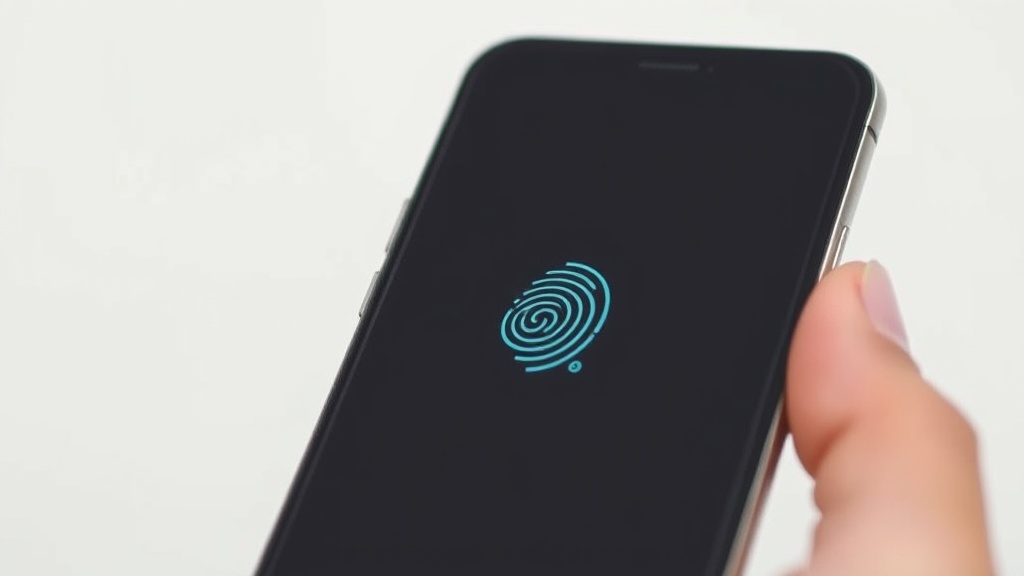
Setting up Face ID and fingerprint recognition on a new phone enhances device security and simplifies unlocking and authentication. These biometric features are typically straightforward to configure, providing a balance between convenience and strong protection for your personal data.
Key takeaways
- Face ID and fingerprint setup improve phone security and ease of access.
- Most phones guide you through a step-by-step enrollment process.
- Proper environmental conditions and placement during setup ensure accurate biometric recognition.
- You can register multiple fingerprints or face angles for better reliability.
- Troubleshooting tips help improve recognition if the phone fails to unlock consistently.
What is Face ID and fingerprint recognition?
Face ID uses the phone’s front camera and sensors to scan and recognize your face. Fingerprint recognition uses a sensor, either embedded in the screen, on a button, or on the back of the phone, to scan your fingerprint. Both methods store encrypted biometric data locally in a secure enclave to prevent unauthorized access and cannot be replicated easily.
Enabling these biometrics makes unlocking the phone quicker than entering a PIN or password while maintaining strong security.
Preparing to set up Face ID and fingerprint on a new phone
Before beginning the setup process, ensure your phone is fully charged or plugged in during configuration to avoid interruptions. Connect to Wi-Fi or cellular data for any updates that might improve biometric functionality.
Clean and dry your hands and face to optimize sensor accuracy. Avoid wearing glasses, hats, or heavy makeup during Face ID setup for better recognition unless you regularly wear these items and want the phone to recognize you in them.
Have your phone’s default screen lock method (PIN, pattern, or password) ready as most devices require setting this as a backup.
Step-by-step guide to setting up Face ID
-
Access the security or biometrics settings
Open the phone’s settings app and navigate to the security section, then choose Face ID or facial recognition. -
Start the enrollment process
Tap “Set up Face ID” or “Enroll Face” depending on your phone’s terminology. -
Position your face inside the frame
Hold the phone at eye level and position your face within the on-screen oval or frame. Follow prompts to slowly move your head in a circle so the phone captures different angles. -
Complete the scan
After one or two rotations, the phone will confirm a successful face scan. Some devices allow you to enable “Require Attention” or similar settings for added security. -
Add an alternate appearance (optional)
Some phones let you register an alternate appearance for wearing glasses or hats. This can improve recognition under varied conditions. -
Enable Face ID for specific functions
Choose which features you want to unlock or authorize with Face ID, such as unlocking the phone, confirming payments, or autofilling passwords.
Step-by-step guide to setting up fingerprint recognition
-
Open the fingerprint settings
Navigate to Settings > Security > Fingerprint or Biometrics. -
Add a fingerprint
Select the option to add a new fingerprint, often labeled “Add fingerprint” or “Enroll fingerprint.” -
Place your finger on the sensor
Depending on the device, the sensor might be below the screen, on a home button, or on the back of the phone. Rest your finger lightly and keep it still while the phone reads your fingerprint. -
Follow the prompts to reposition your finger
The phone will ask you to slightly adjust the finger’s placement multiple times to capture different parts of your fingerprint. -
Complete the scan
Continue following on-screen instructions until the phone confirms the fingerprint is fully registered. -
Register additional fingerprints (optional)
Adding fingerprints from different fingers or hands can make unlocking easier and more flexible. -
Choose what fingerprint unlock enables
Set whether the fingerprint unlocks the phone, authorizes payments, or opens specific apps.
Comparison: Face ID vs. Fingerprint Recognition
| Feature | Face ID | Fingerprint Recognition |
|---|---|---|
| Convenience | Hands-free unlocking | Requires finger placement |
| Security | High; uses depth and infrared sensors | High; sensitive to skin changes |
| Performance in different conditions | Can struggle in low light or with face coverings | Can fail with wet/dirt-covered fingers |
| Speed | Usually fast but varies by conditions | Generally fast and reliable |
| Multiple user options | Generally limited to one or two faces | Supports multiple fingerprints |
| Accessibility | May be challenging for some disabilities | Easier alternatives for some users |
| Setup complexity | Slightly more involved due to head movement | Quick and simple |
Tips to improve biometric recognition
- Keep sensors and camera lenses clean from smudges and dirt.
- During fingerprint setup, make sure your finger covers the sensor fully each time.
- Avoid adding fingers or faces that have temporary changes (cuts, dirt, or heavy makeup).
- Register multiple fingerprints or face angles to improve recognition success.
- For Face ID, ensure good ambient lighting and remove items briefly during setup if recognition is inconsistent.
Checklist for successful setup
| Task | Done (✓) |
|---|---|
| Phone has latest software updates | |
| Phone is adequately charged | |
| Face and fingers are clean and dry | |
| Backup PIN, pattern, or password setup | |
| Multiple fingerprints or alternate face added | |
| Biometric features enabled for unlock and apps | |
| Environment free of direct light glare for Face ID |
FAQ
How long does setting up Face ID and fingerprint take?
The setup usually takes 3–5 minutes per biometric type. Face ID requires performing several head movements slowly, and fingerprint setup involves placing your finger on the sensor multiple times.
Can I use both Face ID and fingerprint on the same phone?
Yes, many phones allow enabling both biometric methods simultaneously. This lets you choose either method based on convenience or environmental conditions.
What if Face ID or fingerprint fails after setup?
Try cleaning the sensor or camera area and ensure your face or finger is dry. You may also delete and re-register your biometrics to improve accuracy.
Is biometric data stored on the phone or cloud?
Biometric data is encrypted and stored locally on the phone in a secure part of the hardware, never uploaded to the cloud.
Can someone else register their biometrics on my phone?
Technically yes, but only if you allow it by unlocking your phone and adding their fingerprint or face. Biometric security assumes the user controls access.
Is biometric login safe for online payments?
Modern biometric technologies paired with secure payment systems are considered safe. Always combine biometrics with a strong backup PIN or password.
